---
updatedAt: 2025-11-13T23:01:02.000Z
agentTools:
projectIndex: https://docs.botsonic.com/llms.txt
---
# Salesforce Ticketing System
Learn how to integrate and setup Salesforce to automatically create a ticket when a user asks for support
This integration automatically creates a ticket in Salesforce when a user wants to submit a ticket or if they request for support.
# Step 1 - Connect & Install
1. Navigate to your Botsonic Dashboard by clicking on \[Home] from the left hand side menu. Then click and open the Bot you want to connect. *If you haven't created a Bot yet, read this[Quick Start Guide](https://docs.botsonic.com/docs/quick-start).*
2. Click \[Integrations] from the left hand side menu, then click \[Apps]
3. Look for the \[Salesforce Ticketing System] integration. Click \[Connect], then click \[Install]
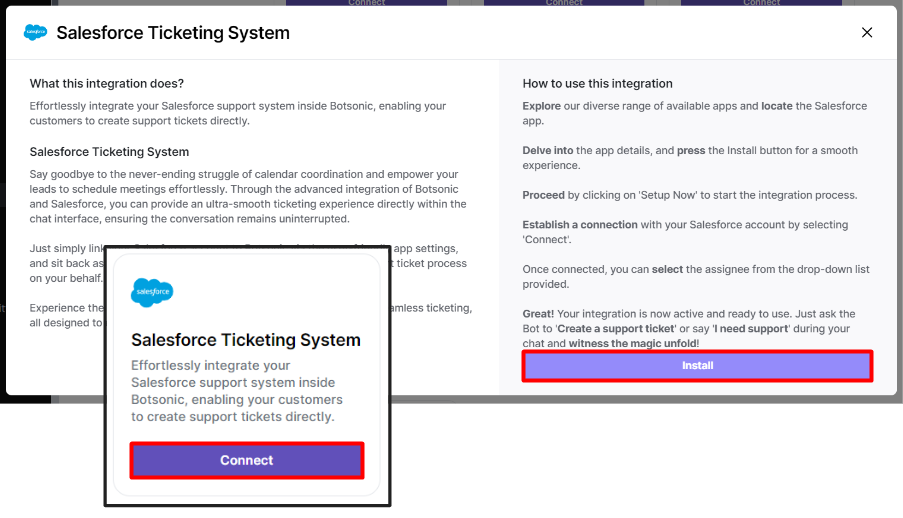
4. Go to \[Installed apps], then click \[Setup Now] on the Salesforce integration
5. Enter your Salesforce subdomain, then click \[Save]. You can find your subdomain when you click your avatar in your Salesforce account.
6. You will be prompted to log into your Salesforce account. Enter your credentials, then click \[Log in]
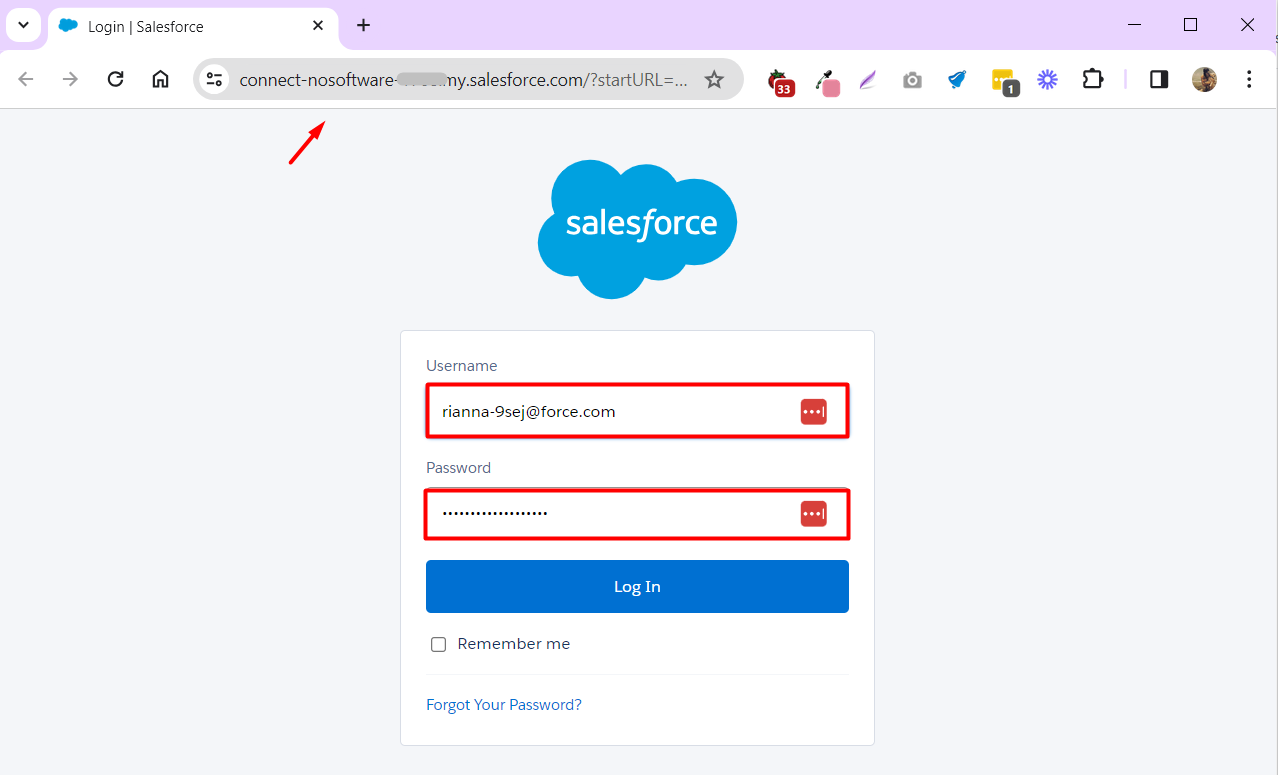
7. Click \[Allow]
8. Refresh the page then click \[View Details] to check that the connection was successful, all fields should be filled out.
# Step 2 - Test the Integration
**NOTE: Make sure the Bot is trained with an uploaded file or FAQ that answers the question/message that you're posting**
1. Interact with the chatbot and ask for support, then click \[Create a support ticket]
2. Provide the information requested by the chatbot.
3. Go to your Salesforce Account > Cases to view the newly created ticket.